A Linux server can become slow long before it runs out of memory completely. Applications may pause, response times may rise, and the system may start moving memory pages to swap. In more severe situations, the kernel may terminate a process to protect the rest of the system. Restarting services can temporarily restore responsiveness, but it may also erase clues about what caused the problem.
A useful investigation begins by distinguishing memory use from memory pressure. Linux uses available RAM for caches and buffers, so a high “used” value by itself does not prove that the system is unhealthy. More important questions are whether applications can obtain memory when they need it, whether the system is reclaiming cache or swapping heavily, and whether a particular process is growing unexpectedly.
This guide describes a careful workflow for investigating memory pressure on a Linux server. It focuses on evidence collection, understanding common metrics, finding processes that matter, and deciding when a service restart or capacity change is justified. Run the commands on systems you are authorized to administer, and avoid changing production services before you understand the impact.

Confirm the Symptom Before Naming the Cause
Start with the observable problem. Has the application become slow? Are requests timing out? Is a scheduled task taking much longer than usual? Is the system reporting out-of-memory events? These symptoms can arise from memory pressure, but they can also be caused by CPU saturation, storage latency, network delays, or a blocked dependency.
Record the time and the workload involved. A server that becomes busy only during a data import may have a different problem from a server whose memory use rises steadily throughout the day. Compare current behavior with a normal period, if you have a monitoring record. Avoid assuming that one snapshot reveals the whole story.
Begin with a few broad checks:
uptime
free -h
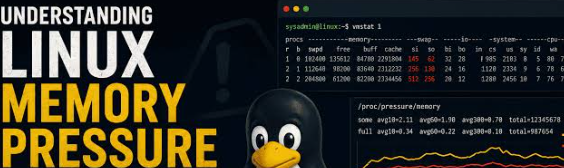
vmstat 1 5
uptime shows the load average and how long the system has been running. free -h summarizes memory and swap. vmstat 1 5 produces a short series of system activity snapshots, which can help reveal whether memory and process activity are changing rapidly.
The point is not to memorize every column immediately. First determine whether the issue is persistent, sudden, or correlated with a particular workload. A repeated pattern is more useful than an isolated high number.
Read free Without Confusing Cache With a Leak
The free -h command is useful because it shows total memory, used memory, free memory, shared memory, buffers/cache, and available memory. On modern Linux systems, the available estimate is often more informative than simply looking at the free column because the kernel can reclaim some cache for applications when necessary.
A machine with little completely free RAM may still be healthy if most of the memory is used for reclaimable cache and applications have enough available memory. Conversely, a machine can experience pressure even if one snapshot does not show every byte consumed, particularly when workload demand changes quickly.
Check swap usage too, but do not assume any use of swap is automatically an emergency. A system can retain cold pages in swap while still functioning well. The more important signs are sustained swapping activity, performance degradation, and evidence that memory demand exceeds what the machine can comfortably provide.
For a useful comparison, capture free -h during normal operation and again during the slowdown. Record the values rather than relying on memory. If available memory falls over time while a process grows, that is a stronger clue than a single high used-memory percentage.
Use vmstat to Look for Sustained Pressure
vmstat provides information about processes, memory, paging, block I/O, interrupts, and CPU activity. Its output can appear dense, so focus on the columns relevant to the current question and consult the local manual when needed.
The si and so columns represent swap-in and swap-out activity in common vmstat output. Persistent nonzero values during a slowdown may suggest that the system is moving pages between RAM and swap. Occasional activity is not enough to diagnose a problem; look for a pattern and compare it with application behavior.
The r column shows runnable processes, while the CPU columns help indicate whether the system is spending time running tasks, waiting for I/O, or idle. If memory appears available but the CPU is saturated, memory may not be the main bottleneck. If I/O wait is high, storage activity deserves attention as well.
Run a short sample during the incident, then compare it with a quiet period. If you need continuous history, use the monitoring system already approved for the environment rather than creating an unbounded command loop that itself adds noise. For a repeatable test, use a disposable Linux lab and record the baseline before introducing a controlled workload; do not create artificial memory pressure on a production machine.
Identify the Processes Using the Most Memory
When the system shows pressure, examine process-level usage:
ps -eo pid,ppid,comm,%mem,rss,vsz --sort=-rss | head -n 15
RSS estimates the physical memory currently resident for a process; VSZ represents virtual address space and should not be interpreted as RAM consumption. Shared pages complicate comparisons, so RSS is a clue rather than an exact per-process accounting of all memory that would be freed if the process stopped.
You can also use top or htop when installed. Sort by memory and watch the values for a short period. A process that is large but stable may be working as designed. A process whose resident memory grows continuously, especially when the workload has not changed, may need closer investigation.
Do not terminate the largest process solely because it appears at the top of the list. It may be the database, application server, or critical system service. Identify the process owner, purpose, parent process, and impact before acting. If it is managed by systemd, inspect the relevant unit and its logs.
For application processes, compare the memory trend with activity such as request volume, queue length, cache size, or number of workers. A rise may reflect a legitimate increase in work, a cache that has not reached its intended limit, or a leak. The evidence should determine the next step.
Check the Kernel for Out-of-Memory Events
When memory pressure becomes severe, Linux may invoke the out-of-memory (OOM) killer to terminate a process and protect system stability. The kernel records messages that can help explain what happened.
Inspect relevant kernel messages with:
journalctl -k --since "2 hours ago" | grep -Ei 'out of memory|oom|killed process'
The exact log access and retention depend on the distribution and system configuration. If the command returns nothing, that does not prove an OOM event never occurred; the relevant time range may be wrong or the logs may be stored elsewhere.
When you find a message, note the time, affected process, memory figures, and surrounding messages. Determine whether the process was killed by a system-wide OOM event or by a memory limit enforced by a container or service manager. Those situations can require different responses.
Do not interpret every “killed process” message without context. A process can exit for other reasons, and log messages may refer to separate incidents. Correlate the time with application errors, monitoring data, and workload changes.
If the service was killed, identify why its memory demand grew and whether that demand was expected. Increasing RAM may be appropriate, but fixing an unbounded queue or a memory leak may be more effective in the long term.
Check Service and Container Limits
A Linux host may have available memory while one service or container reaches its own configured limit. This is common in environments where resource controls are used to prevent one workload from consuming the whole machine.
If systemd manages the service, inspect its unit definition and relevant resource settings. A configured MemoryMax or related cgroup limit can constrain the process independently of system-wide free memory. The exact commands depend on the systemd version and service configuration.
For containerized workloads, inspect the container's resource limits and its memory events. A container that exceeds its configured limit may be terminated or constrained even when the host still has headroom. Compare host metrics with container-level metrics rather than assuming they must agree.
Be cautious when increasing a limit. A larger limit may prevent a premature termination, but it may also allow one service to consume memory needed by other workloads. Understand how much physical memory the host has, what other services share it, and whether the application's memory demand is bounded.
For a wider introduction to Linux and cloud environments, Linux learning materials can support the basic concepts, but always confirm actual resource limits in the environment where the failure occurred.
Inspect Application Logs and Workload Changes
Memory is often only the visible symptom of an application behavior. A report process may load a large file into memory, a web service may create too many workers, a queue may accumulate messages faster than they are processed, or a cache may grow without a limit. Reviewing the application logs and workload changes can help connect the memory pattern to a specific activity.
Look for a time correlation. Did memory increase after a deployment? Did the number of requests rise? Did a scheduled import start? Did a new dataset become larger than usual? Did an upstream dependency slow down, causing requests or jobs to wait longer and retain more data?
The answer may involve more than one factor. A slow database can cause application workers to remain active longer, increasing concurrent memory use. A retry loop may keep creating work when a dependency is unavailable. A cache can be useful at normal load but problematic if it is allowed to grow without bounds.
When possible, reproduce the workload in a staging environment or with a smaller test case. Do not run a risky stress test against production merely to obtain a dramatic graph. The purpose is to isolate the cause while limiting the chance of a second outage.
Decide Whether to Restart, Tune, or Add Capacity
A restart may be an appropriate temporary recovery action when a service is already unavailable, but it should not be the only conclusion. Before restarting, collect the information that could disappear: process details, relevant logs, current memory metrics, and the time of failure. Follow the incident procedure for the service and notify affected users when required.
After the service is stable, determine what the data suggests. A clear memory leak may require an application fix. A known batch job may need a more efficient algorithm or a different schedule. Too many workers may need tuning. A service-specific limit may be set too low for the intended workload. A workload that has legitimately grown may need more resources.
Capacity changes should be considered with the rest of the system in mind. Adding RAM can provide useful headroom, but it may not solve a leak, a queue that grows without bound, or a query that creates huge intermediate data. Conversely, tuning a healthy application cannot make a physically undersized server handle unlimited traffic.
Use a hypothesis-and-test process. State what you think caused the pressure, make one controlled change, and monitor the result under comparable conditions. Record whether the change improved memory pressure, application response time, and error rate. If the result contradicts the hypothesis, revise the diagnosis rather than repeating the same adjustment.
A Practical Incident Checklist
When investigating memory pressure, keep a short record with these items:
- The time and user-visible symptom.
free -houtput and whether available memory changes over time.- A short
vmstatsample during the issue. - The main processes and their resident memory trends.
- Kernel and service logs around the incident.
- Any container or systemd memory limits.
- Recent deployments, scheduled jobs, traffic changes, or new data inputs.
- The action taken and the evidence that the system recovered.
This record makes future incidents easier to compare. It also prevents the investigation from becoming a list of commands with no explanation of what the outputs mean.
A useful post-incident review should identify one improvement: add a memory alert, set a sensible cache limit, document a restart procedure, test a new release under representative load, or improve the monitoring dashboard. Choose changes that reduce recurrence rather than merely making the log more detailed.
Closing Thoughts
Memory pressure is best investigated by combining system-level metrics, process behavior, kernel messages, service limits, and the workload's recent history. A high memory-use number alone does not tell the story, and restarting a service before collecting evidence can remove important clues.
Start with a reproducible symptom, compare normal and incident conditions, identify processes that are changing, and use logs to understand what the kernel and application observed. Make a targeted change only when the evidence supports it, then verify the result.
These steps are useful on a small cloud instance as well as a larger Linux host. More commands are not the goal; a clearer explanation of the failure is. With a calm and repeatable method, administrators can reduce unnecessary restarts, avoid risky guesses, and turn an incident into a better-maintained system. For related Linux resources, keep the documentation beside a verified practice environment and use real measurements to guide the next step.
Comments
Join the discussionNo comments yet. Be the first to comment.