Introduction
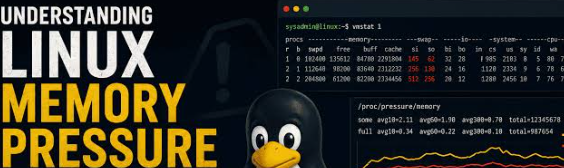
A Linux server can become slow even when its CPU utilization looks normal. Applications may respond late, SSH sessions may pause, database queries may take longer, and background jobs may stop progressing. In some cases, the real problem is memory pressure rather than a shortage of CPU power.
Memory troubleshooting can be confusing because Linux uses available RAM for more than running application processes. The kernel also uses memory for filesystem caches, buffers, and other internal operations. Seeing very little completely free RAM does not automatically mean the system is running out of memory.
The useful question is not simply, “How much RAM is free?” It is whether the system can satisfy memory demands without excessive reclaim activity, swapping, allocation failures, or processes being terminated by an out-of-memory mechanism.

This guide shows how to investigate memory pressure systematically. It starts with read-only commands, explains how to interpret their output, and finishes with a practical method for collecting evidence before changing system settings.
1. Understand the Difference Between Free and Available Memory
Start with:
free -h
The command presents a summary of physical memory and swap. The most useful fields for an initial assessment include total memory, used memory, free memory, shared memory, buffers and cache, available memory, and swap usage.
The free column is only part of the picture. Linux intentionally uses otherwise idle memory to cache filesystem data and make repeated access faster. Much of that cached memory can be reclaimed when applications need it.
The available estimate is generally more useful for assessing whether the host can start or expand workloads without significant swapping. It estimates how much memory can be made available to new processes without forcing the system into excessive swapping.
For example, a machine may report a small amount of free RAM while still having several gigabytes available through reclaimable memory. That situation is not necessarily a performance problem.
By contrast, a consistently declining available-memory value combined with growing swap activity, application latency, and allocation errors deserves investigation.
Inspect the underlying counters with:
grep -E 'MemTotal|MemFree|MemAvailable|Buffers|Cached|SwapTotal|SwapFree|SReclaimable' /proc/meminfo
These values provide a more detailed view of the kernel's memory accounting. They are useful for trend monitoring, but avoid treating every field as a separate block that can simply be added together. Several counters describe overlapping aspects of memory use.
For further study of Linux memory, learn how the kernel accounts for caches, reclaimable memory, and process memory before deciding that low free RAM proves a shortage.
2. Observe Memory Activity Over Time
A single measurement captures only one moment. To determine whether memory pressure is ongoing, use:
vmstat 1 10
This requests ten reports at one-second intervals on systems with the usual vmstat implementation.
The first report may describe averages since boot rather than only the most recent second. Focus on the subsequent interval reports when evaluating current behavior.
Several fields are particularly useful:
rindicates the number of processes waiting for CPU time.bindicates processes blocked while waiting for certain operations.sireports memory swapped in per interval.soreports memory swapped out per interval.freeshows free memory.warepresents CPU I/O wait in the CPU summary.
Sustained nonzero swap activity can indicate that the machine is moving memory pages between RAM and swap. Whether this is problematic depends on the workload. A server may use swap without showing serious performance degradation.
The stronger warning sign is sustained swapping that coincides with slow application responses, increasing latency, or repeated memory reclaim activity.
Do not confuse a high r value with memory pressure by itself. Runnable processes can accumulate because of CPU contention, while processes blocked on I/O may indicate a different bottleneck. Correlate several measurements rather than selecting one number and treating it as the root cause.
3. Identify Processes With High Resident Memory
Once the system-level measurements suggest a problem, identify which processes are using significant amounts of resident memory.
Use:
ps -eo pid,ppid,comm,%mem,rss,vsz --sort=-rss | head -n 15
This sorts processes by resident set size and displays the largest entries near the top.
The important distinction is between RSS and VSZ:
- RSS estimates how much physical memory is resident for a process.
- VSZ represents the size of its virtual address space.
A large virtual address space does not automatically mean that the same amount of physical RAM is occupied. Applications may reserve virtual address ranges without immediately committing physical memory.
RSS is also not a perfect measure of unique memory ownership. Shared libraries and shared memory can appear in the resident memory of multiple processes. Adding every process's RSS together can therefore overestimate the system's actual physical memory consumption.
Use the output to develop a hypothesis. A database with a large resident set may be behaving normally for its configured cache. A worker process whose RSS continually increases may deserve closer inspection. A sudden increase across several related processes could indicate a workload change or duplicated workers.
Repeat the command after a short interval under comparable conditions. If one process grows continuously while the system's available memory declines, investigate that process rather than immediately increasing the server's RAM.
4. Distinguish High Memory Use From a Memory Leak
High memory use and a memory leak are not the same thing.
An application can legitimately retain memory because it caches frequently accessed objects, maintains a working dataset, or serves more concurrent requests. A leak occurs when memory that should have become reusable remains retained due to a defect or an unintended lifetime.
A single process snapshot cannot establish that a leak exists. Instead, observe the process over time.
Record the process ID, resident memory, request volume, and the approximate time of each measurement. If possible, compare memory use during a low-traffic period with memory use during a busier period.
A process that grows during a traffic spike and then stabilizes may be behaving normally. A process that grows continuously even after traffic returns to baseline may require deeper analysis.
Also inspect how the application manages work. Common contributors to unexpectedly high memory use include:
- Unbounded in-memory queues.
- Caches without an appropriate eviction policy.
- Large batches held in memory for too long.
- Data structures that retain completed work.
- Excessive worker concurrency.
- Repeated creation of objects that are not released or reused correctly.
For managed runtimes, use the runtime's own memory profiler or diagnostic commands when available. For native applications, use an appropriate memory analysis tool in a controlled environment. Process-level statistics help identify the symptom, while application-level tools are often needed to explain the cause.
Do not terminate a process simply because it appears near the top of the memory list. First determine its role, whether it is serving production traffic, and what would happen if it stopped unexpectedly.
5. Check Whether Swap Is Hiding a Capacity Problem
Inspect swap configuration and usage with:
swapon --show
and:
free -h
Swap can give the kernel additional room to manage memory, but it is not equivalent to physical RAM. When active memory pages repeatedly need to be read from storage, application latency can rise sharply.
A host with some swap usage is not necessarily unhealthy. The useful evidence is the current activity and its relationship to workload behavior.
If vmstat shows sustained swapping while an application becomes slow, inspect which workload is creating the memory demand. A large batch process might be competing with a database. A sudden increase in concurrent workers might be overwhelming a service's memory budget. A container might be hitting its configured memory limit even though the host still has available RAM.
Avoid changing the kernel's swap-related settings just to make one metric look better. Tuning is workload-dependent, and an adjustment that helps one machine can make another perform worse.
Before changing swap behavior, understand whether the host is short on physical memory, whether its workload has grown, and whether the application's own memory use is reasonable.
6. Investigate Out-of-Memory Events
When the kernel cannot satisfy memory demands under relevant conditions, an out-of-memory mechanism may select a process to terminate. The event can explain why an application disappeared or restarted even though no one intentionally stopped it.
On a system using systemd, inspect recent kernel messages with:
sudo journalctl -k --since "1 hour ago"
To narrow the output, use:
sudo journalctl -k --since "1 hour ago" | grep -Ei 'out of memory|oom|killed process|memory cgroup'
The exact wording depends on the kernel, distribution, and memory-control configuration. Review the surrounding messages rather than relying only on the filtered lines.
Look for the timing of the event, the process involved, and whether the log indicates a system-wide memory shortage or a memory-control limit affecting a particular workload.
The process selected for termination is not always the original cause of the problem. It may have been selected because of its memory use or because of the kernel's scoring and constraints at that moment. Check what happened before the event: did a service start extra workers, did a batch job begin, or did another process increase its memory footprint?
If the system uses containers or service-specific memory controls, inspect the relevant environment as well. Host-wide memory can look healthy while an individual workload reaches its own limit.
7. Check Container and Service Memory Limits
Applications do not always receive access to all memory installed on a machine. A container, service, or control group can have a lower memory limit.
On a system using cgroup v2, a workload may expose files such as:
memory.current
memory.max
memory.events
The precise location depends on the cgroup hierarchy and how the workload is launched. These files can help show how much memory the group currently uses, what limit applies, and whether memory-related events have occurred.
For a systemd service, inspect the service's memory properties where supported:
systemctl show example.service -p MemoryCurrent -p MemoryMax
Replace example.service with the actual unit name. Property availability and values depend on the system's systemd version and configured resource controls.
This distinction matters when diagnosing an application running in a container. The host may have free RAM, but the container can still fail because it has reached its own limit.
Before raising a limit, measure the workload's normal and peak use. Check whether the limit is intentionally protecting other workloads from resource exhaustion. If the application has a memory leak, increasing its limit may only delay the next failure.
8. Avoid Destructive or Misleading Fixes
A common mistake is to treat the memory cache as wasted memory and immediately clear it. Linux uses cache to improve performance, and removing useful cache can make subsequent operations slower while leaving the underlying memory problem unresolved.
Do not use cache-clearing commands in production just to make free memory appear higher. First identify whether the workload genuinely lacks available memory and whether reclaim activity is causing the observed performance issue.
Likewise, do not automatically restart the process using the most RAM. Restarting may temporarily return memory to the system, but it can also interrupt users, lose in-memory work, and hide the evidence needed to find a leak.
A safer sequence is to:
- Record system memory and swap statistics.
- Identify the largest resident processes.
- Compare measurements over time.
- Review application and kernel logs.
- Check container or service memory limits.
- Choose the smallest corrective change supported by the evidence.
- Repeat the same measurements to verify the result.
This produces a more useful incident record than a restart followed by the assumption that the problem is solved.
9. Build a Small Memory Investigation Record
A repeatable record makes it easier to compare incidents. Include the time of the observation, affected service, current traffic, available memory, swap activity, and the largest processes.
If the issue recurs, compare the observations with a normal baseline. Memory pressure might be caused by an unusual batch job, a recently changed worker count, a release that introduced a retention bug, or a workload that has outgrown the server's capacity.
Keep host measurements and container measurements separate. Record the applicable memory limits and whether an OOM event appeared in the logs. Remove secrets and sensitive operational information before sharing diagnostic output.
For additional Linux learning, focus on understanding what each metric actually measures. A command becomes much more useful when its output is tied to a clear question rather than collected as part of an unexplained checklist.
Conclusion
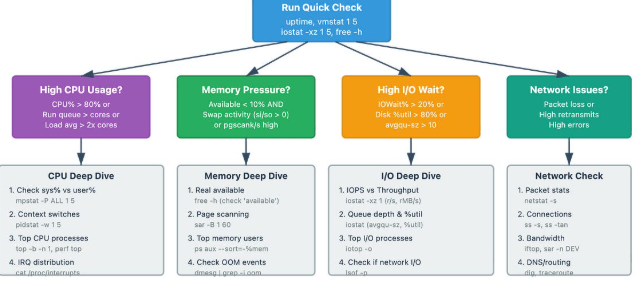
Linux memory troubleshooting starts with interpretation, not immediate tuning. Low free memory can be normal, while sustained swapping, declining available memory, increasing process footprints, and out-of-memory events can provide stronger evidence of pressure.
Start with free, inspect interval behavior with vmstat, identify high-RSS processes, and examine kernel messages. If containers or service limits are involved, evaluate their resource controls rather than looking only at host-wide statistics.
Do not assume that a large process is leaking memory, that swap usage is always bad, or that clearing caches will fix a slowdown. Collect comparable measurements, test a specific hypothesis, and verify the result after a change.
A disciplined approach to memory investigation helps distinguish normal Linux behavior from a real capacity problem and makes the final fix more reliable.
Comments
Join the discussionThe free vs available split, and the note that summing RSS across processes double-counts shared libraries, is the part people skip when free -h looks scary. One signal I pair with the vmstat section: after you ignore the first since-boot sample, check /proc/pressure/memory (some/full, avg10/60/300) next to si/so. Swap counters can tick without tasks actually stalling, and PSI is what shows the reclaim is hurting latency. The cgroup point is the one that bites in containers too. Host MemAvailable can look fine while memory.events on the unit already has oom or oom_kill. systemctl show -p MemoryCurrent -p MemoryMax before touching swappiness matches the argument here, and it stops the reflex of clearing caches to make free look bigger.