Debugging Linux Services with systemd: A Repeatable Method for Beginners
When a Linux service fails, the quickest-looking solution is often to restart it and hope the problem disappears. A restart may restore service temporarily, but it does not explain why the failure happened. A repeatable troubleshooting method helps you find the cause, avoid unnecessary changes, and build knowledge that can be used on the next server.
This tutorial covers services managed by systemd, which is common on modern Linux distributions. The exact service names and available commands can vary, so confirm the distribution and use a test machine when practising unfamiliar operations.
Step 1: Identify the service and current state
Start by checking the service status:
systemctl status nginx
Replace nginx with the service you are investigating. The output usually includes whether the unit is loaded, whether it is active, the main process identifier, and recent log lines. Read the entire relevant section, especially the last few messages. A service may be stopped intentionally, failed during startup, or active but not doing what you expect.
List failed units with:
systemctl --failed
This can reveal a related service that failed before the main application. For example, an application might depend on a database, a mounted file system, or a network service. The service that appears broken to the user may only be the final symptom.
Step 2: Read the logs around the failure
Use the journal to inspect recent events:
journalctl -u nginx --since "30 minutes ago"
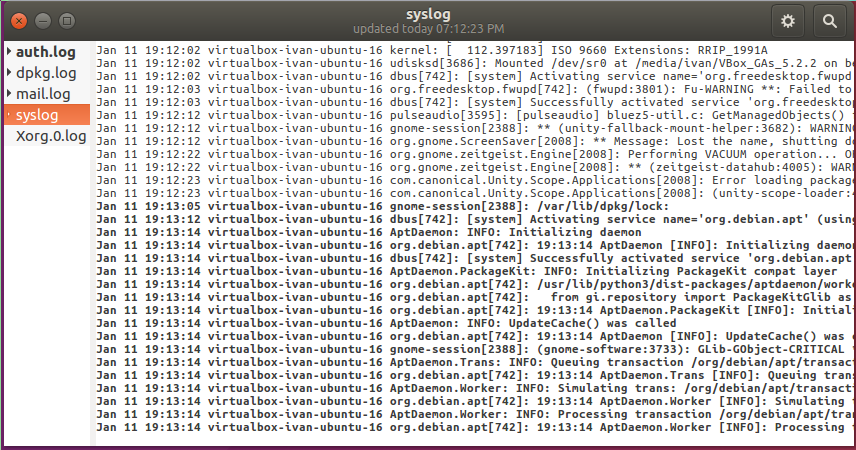
The time window limits noise. For more context around system-level events, inspect the journal with appropriate filters rather than scrolling through everything. Look for lines that occurred immediately before the failure. Messages about missing files, invalid settings, permission problems, failed dependencies, and port binding can direct the next check.
A common mistake is to search only for the word error. Some useful messages are warnings or informational lines that explain a later failure. Read a small sequence of events and note the order in which they occurred.
Step 3: Check the configuration before restarting
Many services provide a configuration test. For Nginx, for example:
sudo nginx -t
For other services, check the relevant documentation or manual page to identify the correct validation option. A configuration test can catch syntax errors without requiring a full restart. Do not assume that a test exists or that it checks every runtime dependency.
Before editing a configuration file, create a backup copy and record the path. Change one setting at a time, run the validation command again, and compare the result. Keep the change small enough that you can understand its effect. On production systems, follow a change process and use a staging environment when available.
Step 4: Check whether the required port is available
A service may fail to start because another process is already listening on the port it needs. Inspect listening sockets with:
sudo ss -tulpn
To narrow the output, search for a port number, for example:
sudo ss -tulpn | grep ':80'
If another service owns the port, identify why it is running before stopping it. Killing a process without understanding its role can interrupt another application. Sometimes the correct fix is to change the intended port or correct a service configuration rather than removing the process.
Step 5: Inspect file and directory permissions
The process running the service may not have permission to read its configuration, access a directory, or write a log file. Use ls -l to inspect ownership and permission bits. Use namei -l /path/to/file when available to examine permissions along the directory path. A file can have the right permissions while an upper directory prevents access.
Avoid broad permission changes such as recursively setting everything to 777. They may hide the symptom but create a serious security weakness. Identify the account used by the service and grant only the access required. If a system package manages the file, check whether a manual change could be overwritten by an update.
Step 6: Check dependencies and resource limits
A service may start and then exit because it cannot reach a database, resolve a host name, open a required file, or allocate enough memory. Check whether the relevant dependency is active and reachable. Inspect the system's available disk space and memory:
df -h
free -h
If the disk is full, logs or temporary files may not be writable. If memory is exhausted, the operating system may terminate a process. Do not delete large files without identifying them. Logs should be rotated and retained according to a sensible policy, not removed blindly whenever disk space becomes low.
Step 7: Distinguish a service failure from a network failure
A service can be active while remote users still cannot reach it. Check whether it is listening on the expected address and port, then test locally. If the local test works but the remote test fails, investigate firewall rules, cloud security groups, routing, DNS, and any proxy or load balancer in front of the service.
This distinction avoids wasting time changing the application's configuration when the network path is the real problem. Test each layer separately and document the result. Do not open every port to all addresses as a troubleshooting shortcut.
Step 8: Restart only after understanding the change
If a restart is necessary, use the correct service command:
sudo systemctl restart nginx
systemctl status nginx
Then check the logs again. Confirm that the service remains active and responds to a basic request. If the service fails again, the restart did not solve the underlying problem. Return to the logs and compare the new messages with the original ones.
A useful incident note
Record the time the problem began, the service name, exact error messages, commands executed, configuration changes, and the result of each test. Include only non-sensitive output. This note helps another administrator understand what happened and prevents the same experiment from being repeated without purpose.
Final checklist
Identify the service and read its status.
Check recent logs in a narrow time window.
Validate configuration before restarting.
Check listening ports and process ownership.
Inspect permissions and dependencies.
Check disk, memory, and networking.
Make one controlled change at a time.
Confirm recovery and record the result.
System troubleshooting becomes much more reliable when it follows evidence rather than guesswork. systemctl shows service state, journalctl provides event history, and basic commands help check resources, ports, and permissions. Learning to combine them is more valuable than memorising a single fix because the next failure will rarely be identical to the last one.
Example investigation: Nginx is active but the page does not load
Start with the state rather than guessing: systemctl status nginx shows whether the process is running. Next, run ss -tulpn to verify that the expected port is listening. If the process is listening locally, use a local request such as curl -I http://127.0.0.1 where appropriate for the configuration. If the response works locally but not from another machine, the likely investigation moves toward address binding, firewall rules, cloud security groups, routing, or a proxy layer.
If the local request fails, look at the service logs and configuration test. The server may be using a different server block, failing to find the document root, or returning an application error. The point of the sequence is that every test narrows the possibilities. Changing DNS before confirming the service is listening can waste time because DNS may not be involved at all.
Avoid common troubleshooting traps
Do not restart every service when one component fails. Unrelated restarts may interrupt other work and make the original evidence harder to interpret. Do not copy a command that includes sudo, recursive deletion, or broad permission changes without understanding what it affects. Do not open all firewall ports as a quick test. If you need to test access, use a controlled source address and restore the rules afterward.
Another trap is treating one successful request as full recovery. Test the actual use case: load a page, submit a safe test form, or check the application action that initially failed. A service can answer an HTTP request while its database, background jobs, or external dependency remains unhealthy.
Turn the fix into reusable knowledge
After the incident, write a short note with the symptom, evidence, root cause, resolution, and verification. Include commands but explain why they were used. If the root cause is still uncertain, say so. Add a preventative action where useful, such as monitoring disk usage, adding a configuration validation step, or improving a service's log retention. This converts one troubleshooting session into a better operational process.